A c prompt usually means the Windows Command Prompt showing a location on the C: drive, such as `C:\>`. It is a place to type commands, not an AI image-generation instruction. For a creative workflow, it can help you navigate project folders or launch a local image tool, but you do not need it to write prompts in a web-based image generator.
There is one wrinkle: someone discussing image generation may use “C prompt” as informal shorthand for a particular prompt or variable. That is not a universal image-prompt format. Ask for the surrounding instructions before assuming it means anything specific.
What the display tells you
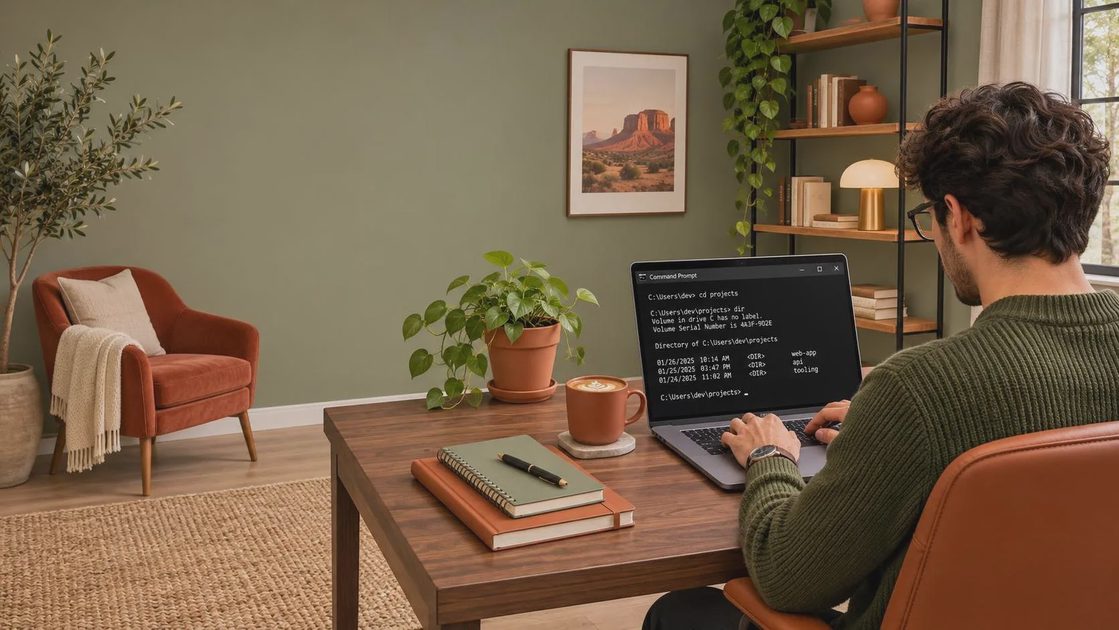
In Command Prompt, the text before the cursor shows your current drive and folder. For example, `C:\Users\Jordan>` means commands will normally start from the Jordan user folder on the C: drive. The name is just an example; your own path will be different.
The `>` character marks where you can type. It is part of the display, not usually something you include when copying a command. If a tutorial shows `C:\>dir`, type `dir` and press Enter. Do not type the entire displayed line unless the instructions explicitly say to.
The c prompt is not necessarily at the root of the drive. `C:\Projects\Images>` is still a prompt on C:, but its working folder is `Images`. That distinction matters when a command reads or creates a file: a relative filename such as `brief.txt` refers to a location relative to the working folder.
A drive letter also does not guarantee a particular physical disk or folder layout. Treat the path on screen as your starting point, and check that it matches the location a tutorial expects.
Open a c prompt and find your project
On Windows, open Start, type `cmd`, and select Command Prompt. A window opens with a path and a blinking cursor. You can use it as a regular user for basic navigation; do not choose “Run as administrator” unless a trustworthy set of instructions explains why elevated access is necessary.
Type `cd` and press Enter to show the current working directory. Type `dir` to list files and folders there. These are useful first checks before running a setup command from an AI workflow: an instruction meant for a project folder may fail if you run it somewhere else.
To change folders, type `cd` followed by the path. For a folder named `Image Projects` inside your user directory, an example is:
`cd "%USERPROFILE%\Image Projects"`
The quotation marks keep the space in the folder name from being interpreted as a separator. The `%USERPROFILE%` variable points to your Windows user profile; the example works only if that folder exists. If it does not, use the actual path to your project instead.
To move up one folder, enter `cd ..`. To go to the root of the current drive, enter `cd \`. If your destination is on another drive, use `cd /d` followed by its full path, for example `cd /d "D:\Image Projects"`. Run `cd` again to confirm where you landed.
Use it with a local image workflow
A c prompt can be useful when a local image-generation project provides Windows installation or launch commands. The practical sequence is to read the project’s own instructions, navigate to the specified folder, and enter one command at a time. Wait for each command to finish and read any error before continuing.
Suppose a project tells you to run a launch script from its installation directory. First use `dir` to confirm that the script is actually there. Check the spelling and extension in the project’s documentation; a script name copied from an unrelated tutorial may not apply to your installation.
Keep your image prompt separate from the terminal command. A description such as “amber glass bottle on a pale stone surface, soft side light, clear space at right for headline” is creative direction. It is not a command to paste into `cmd` unless a particular application explicitly asks for that text in the terminal.
Before you start a local workflow, note where it saves outputs. A beautiful product concept is not much use if you cannot find the file for review. The application’s settings or documentation should identify its output folder; use `dir` to inspect that location if needed. Do not assume every tool uses the same folder structure.
Avoid commands you do not understand
A c prompt gives commands access to your files. Navigation commands are a sensible starting point, but commands that delete, overwrite, download, or execute files deserve closer inspection. Be especially careful with `del` and `rmdir`: a mistyped path or an option copied without context can remove material you meant to keep.
Do not paste a long command from a random comment simply because it promises to fix an installation. Check the project’s official instructions, read what the command does, and make sure the path refers to the intended project. Avoid posting screenshots that expose usernames, private folder names, or access tokens when asking for help.
An administrator window increases the potential damage of a mistake. Most troubleshooting starts just as well in a normal window, with the exact error message and the command that produced it. Redact sensitive paths and credentials before sharing either.
When the instructions look different
Windows Terminal is an app that can host several command-line environments, including Command Prompt and PowerShell. A tab showing `PS` before its path is typically PowerShell, not the classic c prompt. Some navigation commands look similar, but syntax and script behavior can differ. Follow the instructions for the environment they specify rather than swapping commands blindly.
If you see a dollar sign in a tutorial, it may be showing a shell on macOS or Linux. That symbol, like `>`, is often a prompt marker rather than text to copy. Look for a Windows-specific installation section before trying the rest.
Start with `cd` and `dir`, confirm the folder, and only then run the documented project command. It is a small check, but it separates a usable workflow from a frantic search for files that landed somewhere unexpected. Test it before you trust it.
For AI tool features, rules and availability, refer to their official sites.

Leave your thoughts here, too.